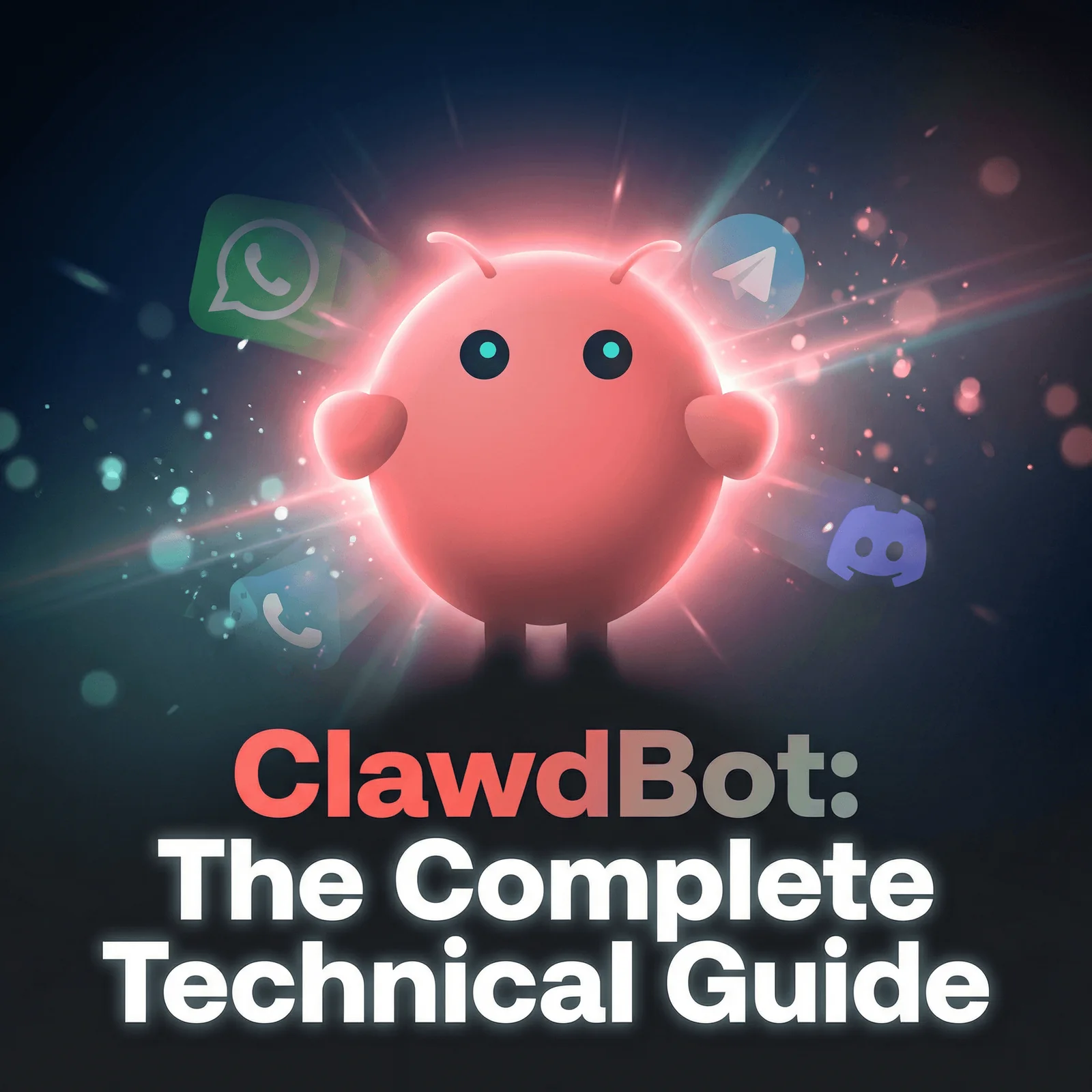
Last week, WCCFtech ran a headline about Mac Minis flying off shelves because of an open source project called ClawdBot. Developers were buying $600+ computers just to run a personal AI assistant.
Here's the thing though. You don't need a Mac Mini.
ClawdBot's official documentation says it runs on 512MB to 1GB of RAM and a single CPU core. A Raspberry Pi 4 can handle it. So can a $5/month VPS from Hetzner.
But the Mac Mini buying frenzy wasn't entirely irrational. It points to something bigger: people are hungry for AI that actually does things, not just answers questions. And ClawdBot delivers on that promise in a way that feels genuinely different from chatting with ChatGPT or Claude's web interface.
This guide covers everything you need to know about ClawdBot. What it actually does, why developers are obsessed with it, and how to set it up on a cheap VPS instead of buying new hardware.
What Makes ClawdBot Different
ClawdBot is a self-hosted AI assistant created by Peter Steinberger, the founder of PSPDFKit. It went from personal project to 8,000+ GitHub stars in just a few weeks. The core idea is simple: instead of going to ChatGPT, your AI comes to you through WhatsApp, Telegram, Discord, or iMessage.
But here's what sets it apart from every other AI wrapper out there:
It messages you first. Most AI tools wait for you to ask something. ClawdBot can send you morning briefings, alert you when something happens, or remind you about things you asked it to track. This is the "proactive" feature that makes people compare it to having a real assistant.
It remembers everything. ClawdBot stores context in Markdown files, similar to how an Obsidian vault works. When you talk to it today, it knows what you discussed last week. Fresh ChatGPT sessions don't have this continuity.
It controls your computer. Shell access, file system manipulation, browser automation with your logged in sessions. Ask it to create a file, run a script, or navigate a website and it just does it.
It teaches itself new skills. This one surprised me. Ask ClawdBot to learn a new capability and it writes the TypeScript module itself. User @xMikeMickelson shared that they asked ClawdBot to make a video using Sora, and it came back five minutes later having figured out watermark removal, API keys, and a complete workflow on its own.
There's also the privacy angle. Everything runs on your hardware. Your conversations, your data, your API keys. Nothing goes to a third party server you don't control.
The Viral Stories That Made ClawdBot Explode
The most concrete proof of ClawdBot's capabilities came from AJ Stuyvenberg's viral blog post. He used ClawdBot to negotiate his car purchase through automated dealer emails. The bot searched inventory, initiated bidding wars between dealers, and closed the deal. Final savings: $4,200 off the price.
All through WhatsApp prompts.
Federico Viticci at MacStories ran ClawdBot for a week and burned through 180 million Anthropic API tokens. He replaced his Zapier automations, built daily briefings, and created voice-activated workflows. His review called it "the ultimate expression of a new generation of malleable software."
Other documented wins include rebuilding an entire website via Telegram while watching Netflix (migrating from Notion to Astro, moving 18 posts, switching DNS to Cloudflare), ClawdBot calling a restaurant using ElevenLabs when OpenTable failed, and automated daily performance reviews tracking emails, screen time, meetings, and code written.
One user reported that ClawdBot self-provisioned Google Cloud API keys by navigating the console autonomously. Think about that for a second.
Why People Think They Need a Mac Mini (And Why They Don't)
The Mac Mini buying frenzy happened for three reasons:
iMessage requires macOS. If you want ClawdBot in iMessage specifically, you need a Mac running somewhere. This is an Apple limitation, not a ClawdBot one.
24/7 operation. ClawdBot needs to run continuously for proactive features like morning briefings and alerts. Running it on your laptop gets annoying because it needs to stay on.
Social proof effect. Early adopters posted their Mac Mini setups on Twitter. Other people saw those posts and assumed Mac Mini was required.
The reality? ClawdBot works perfectly on Linux. The official FAQ explicitly states the gateway only needs 512MB to 1GB of RAM, one CPU core, and about 500MB of disk space.
Here's what you keep with a Linux VPS:
All core functionality
WhatsApp, Telegram, Discord, Slack, Signal, Matrix, Microsoft Teams
Browser automation
Cron jobs for scheduled tasks
Proactive messaging
All 50+ integrations including Gmail, Calendar, GitHub, Spotify, and Philips Hue
Memory and learning features
Here's what you lose without a Mac:
iMessage channel (Mac exclusive due to Apple restrictions)
Voice Wake feature
macOS menu bar app
For most people using Telegram or WhatsApp as their primary interface, a $5 VPS is the smarter choice.
The Cost Comparison
Option | Cost | Best For |
|---|---|---|
Mac Mini M4 | $599-799 upfront + electricity | iMessage users only |
Hetzner VPS (CX22) | $5-6/month | Everyone else |
Raspberry Pi 4 | $75-100 one-time | Home network setups |
Your existing server | $0 additional | If you already have one |
If you're building products with AI tools like Cursor, Lovable, or Bolt, you probably already have infrastructure running somewhere. Adding ClawdBot to an existing VPS costs nothing extra.
And if you're running Rectify to monitor those products, having ClawdBot on the same infrastructure means you can ask it to check your uptime stats, pull session replays, or summarize recent incidents through a quick Telegram message.
Complete VPS Setup Guide
This is the exact process to get ClawdBot running on a Hetzner VPS. Takes about 20 minutes from start to first message.
Part 1: Create Your Server
Step 1: Go to hetzner.com/cloud and create an account. You'll need a credit card and ID verification.
Step 2: Click "Add Server" and configure:
Location: Choose the one nearest to you
Image: Ubuntu 24.04
Type: CX22 (4GB RAM) at approximately €4/month
SSH Key: Add your public key (instructions below)
Step 3: Click "Create & Buy Now" and copy the IP address when it's ready.
Getting Your SSH Key
Open your terminal and run:
cat ~/.ssh/id_rsa.pubIf you don't have a key yet, create one:
ssh-keygen -t ed25519 -C "your-email@example.com"
cat
This works on Mac, Linux, and Windows (WSL or Git Bash). Paste the output into Hetzner when creating the server. Your public key is safe to share. It's like a padlock. The private key (without .pub) is what opens it. Never share that.
Part 2: Secure Your Server
Connect via SSH:
ssh root@YOUR-SERVER-IPUpdate everything first:
apt update && apt upgrade -yCreate a non-root user (replace YOUR-USERNAME with whatever you want):
adduser YOUR-USERNAME
usermod -aG sudo YOUR-USERNAME
Set up SSH access for your new user:
mkdir -p /home/YOUR-USERNAME/.ssh
cp ~/.ssh/authorized_keys /home/YOUR-USERNAME/.ssh/
chown -R YOUR-USERNAME:YOUR-USERNAME /home/YOUR-USERNAME/.ssh
chmod 700 /home/YOUR-USERNAME/.ssh
chmod 600 /home/YOUR-USERNAME/.ssh/authorized_keys
Switch to your new user:
su - YOUR-USERNAMEPart 3: Install Dependencies
Install Node.js 22+ using nvm:
curl -o- https://raw.githubusercontent.com/nvm-sh/nvm/v0.40.3/install.sh | bashClose and reopen your terminal, or run:
source ~/.bashrcThen install Node:
nvm install 22
node --version
Enable pnpm:
corepack enable pnpmPart 4: Install ClawdBot
The quick install method:
curl -fsSL https://clawd.bot/install.sh | bashOr manual install:
npm install -g clawdbot@latestVerify it worked:
clawdbot --versionPart 5: Run the Onboarding Wizard
clawdbot onboard --install-daemonThe wizard will ask you several questions:
Gateway: Choose Local
Runtime: Choose Node (required for WhatsApp and Telegram)
Auth: Choose your authentication method
Messaging: Telegram is recommended for beginners
Install daemon: Say Yes
Choosing Your AI Provider
ClawdBot supports a wide range of AI providers. This is one of its strengths: you're not locked into any single model or pricing structure. Pick whatever works for your budget and use case.
Built-in Providers (No Extra Configuration Needed)
These providers work out of the box. Just add your API key or authenticate via OAuth:
Provider | Auth Method | Example Model | Notes |
|---|---|---|---|
Anthropic | API key or Claude Code CLI token | anthropic/claude-sonnet-4 | Recommended for complex tasks |
OpenAI | API key or Codex OAuth | openai/gpt-4o | Good for general use |
OpenRouter | API key | openrouter/anthropic/claude-sonnet-4-5 | 300+ models through one API |
xAI | API key | xai/grok-beta | Grok models |
Groq | API key | groq/llama-3.3-70b | Fast inference |
Mistral | API key | mistral/mistral-large | European provider |
Z.AI | API key | zai-glm-4.7 | GLM models |
GitHub Copilot | GitHub token | Via COPILOT_GITHUB_TOKEN | Uses existing subscription |
OAuth Providers (Subscription Reuse)
If you already pay for a subscription, you can reuse those credentials:
Anthropic Claude Code CLI: If you have Claude Pro or Max, generate a token from your existing subscription:
# On your local machine (not the VPS)
npm install -g @anthropic-ai/claude-code
claude setup-token
# or if already authenticated:
claude setup-token --force
OpenAI Codex: Uses OAuth device code flow during onboarding.
Qwen Portal: For Qwen Coder and Vision models:
clawdbot plugins enable qwen-portal-auth
clawdbot models auth login --provider qwen-portal --set-default
Google Gemini CLI: For Gemini models:
clawdbot plugins enable google-gemini-cli-auth
clawdbot models auth login --provider google-gemini-cli --set-default
Gateway and Aggregator Providers
These services give you access to multiple models through a single API:
OpenRouter is particularly useful. One API key gives you access to 300+ models from OpenAI, Anthropic, Google, Meta, and more. Pay per use, no subscriptions.
Vercel AI Gateway works similarly if you're already in the Vercel ecosystem.
Local Models with Ollama
This is the privacy maximalist option. Run models entirely on your hardware with zero API costs.
Install Ollama from ollama.ai, then pull a model:
ollama pull llama3.3
# or for coding tasks:
ollama pull qwen2.5-coder:32b
# or for reasoning:
ollama pull deepseek-r1:32b
Enable Ollama for ClawdBot:
export OLLAMA_API_KEY="ollama-local"
# Or configure in your config file:
clawdbot config set models.providers.ollama.apiKey "ollama-local"
ClawdBot will auto-discover your Ollama models. Use them like this:
{
  "agents": {
    "defaults": {
      "model": {
        "primary": "ollama/llama3.3",
        "fallback": ["ollama/qwen2.5-coder:32b"]
      }
    }
  }
}
The tradeoff: local models need decent hardware (a GPU helps significantly) and are generally less capable than frontier cloud models. But your data never leaves your machine.
Custom Providers (MiniMax, Moonshot, Venice)
Some providers need manual configuration because they use custom endpoints:
Moonshot (Kimi): Uses OpenAI-compatible endpoints:
{
  "models": {
    "providers": {
      "moonshot": {
        "baseUrl": "https://api.moonshot.ai/v1",
        "apiKey": "${MOONSHOT_API_KEY}",
        "api": "openai-completions"
      }
    }
  }
}MiniMax: Uses Anthropic-compatible endpoints:
{
  "models": {
    "providers": {
      "minimax": {
        "baseUrl": "https://api.minimax.chat/v1",
        "apiKey": "${MINIMAX_API_KEY}",
        "api": "anthropic-messages"
      }
    }
  }
}
Venice AI: Privacy-focused provider. See the ClawdBot docs at docs.clawd.bot/providers/venice for current setup instructions.
Quick Setup: Adding Your First Provider
For most people, the easiest path is using the onboarding wizard with an API key:
clawdbot onboard --install-daemonDuring the wizard, choose your auth method. The wizard will guide you through adding credentials.
Or add a provider manually:
clawdbot models auth addChoose your provider, enter your API key or paste your token, then restart:
clawdbot daemon restartMy Recommendation
If you're just getting started, OpenRouter is hard to beat. One API key, access to every major model, pay per use. No subscription commitments.
If you already have a Claude Pro or Max subscription, use the Claude Code CLI token method to reuse your existing subscription.
If privacy is your top priority and you have a decent GPU, run Ollama locally with qwen2.5-coder or llama3.3.
For production workloads where you need reliability and don't want to manage anything, Anthropic API with Claude Sonnet or Opus is the gold standard.
Setting Up Telegram
Telegram is the easiest messaging platform to configure with ClawdBot.
Create Your Bot with BotFather
Open Telegram
Search for @BotFather
Send /newbot
Give it a name like "My AI Assistant"
Give it a username (must end in "bot")
Copy the token BotFather gives you
Add the Token to ClawdBot
clawdbot configure --section telegramPaste your bot token when prompted.
clawdbot daemon restartApprove Your First Pairing
This is a security feature. ClawdBot won't respond to random people who find your bot.
Open Telegram, find your bot, and send "Hello!" It won't respond yet.
On your VPS, list pending approvals:
clawdbot pairing list telegramCopy the code shown and approve yourself:
clawdbot pairing approve telegram CODENow send another message. Your bot should respond.
Accessing the Dashboard
ClawdBot has a web dashboard for managing settings, viewing logs, and monitoring conversations.
Start an SSH Tunnel
On your local machine (not the VPS), run:
ssh -N -L 18789:127.0.0.1:18789 YOUR-USERNAME@YOUR-SERVER-IPThis command will look like it hangs. That's normal. Leave it running.
Open the Dashboard
In your browser, go to:
http://localhost:18789/?token=YOUR-GATEWAY-TOKENIf you lost your token during onboarding, find it with:
cat ~/.clawdbot/clawdbot.json | grep tokenUse incognito mode if you have authentication issues.
Teaching ClawdBot About You
This is where ClawdBot starts feeling like a real assistant instead of a chatbot.
Send this to your bot in Telegram:
"I want you to interview me so you can be more useful. Ask me questions about my work, life, preferences, routines, and goals. Whatever you need to know to be a great assistant. Go one question at a time."
Answer its questions honestly. It'll ask about your schedule, what projects you're working on, how you like to communicate, and what kind of help you actually need.
After the interview, say:
"Now save everything you've learned about me to your USER.md file"
Then check what it knows:
"What do you currently know about me?"
If you're running a SaaS business, teach it about your tools. Tell it about your Rectify projects, your monitoring setup, your development workflow. The more context it has, the more useful it becomes.
Adding Optional Features
Web Search
Get a free API key from brave.com/search/api, then configure it:
clawdbot configure --section webOr just tell your bot: "Set up Brave web search with this API key: YOUR-KEY"
Morning Briefings
This is where proactive messaging gets interesting. Ask your bot:
"Set up a daily cron job at 7am that sends me a morning briefing with today's weather in London, my top priorities, and the latest AI news."
Voice Output with ElevenLabs
clawdbot configure --section elevenlabsclawdbot channels loginScan the QR code with WhatsApp using Settings then Linked Devices.
Essential Commands Reference
Keep this list handy:
clawdbot health              # Check everything's working
clawdbot status              # Quick status overview
clawdbot daemon status       # Check if daemon is running
clawdbot daemon restart      # Restart the bot
clawdbot daemon stop         # Stop the bot
clawdbot logs --follow       # Watch live logs
clawdbot pairing list telegram    # See pending approvals
clawdbot channels login      # Link WhatsApp (QR scan)
clawdbot doctor              # Diagnose issues
clawdbot configure --section web  # Set up web search
clawdbot models auth add     # Add or change AI provider
clawdbot models status       # Check configured providers
clawdbot plugins list        # See available plugins
clawdbot plugins enable NAME # Enable a plugin (like qwen-portal-auth)
Troubleshooting Common Issues
"Address already in use" when starting SSH tunnel
Kill what's using the port:
lsof -ti:18789 | xargs kill -9If it keeps respawning on macOS, unload the launch agent:
launchctl unload ~/Library/LaunchAgents/com.clawdbot.gateway.plistOn Linux, check for systemd services:
systemctl --user stop clawdbot-gateway"unauthorized" in dashboard
Use the full URL with your token. Try incognito mode if cookies are causing issues.
"No API key found" or "no auth configured"
Run the auth setup:
clawdbot models auth addCheck your configured providers:
clawdbot models statusBot not responding in Telegram
Check it's running:
clawdbot daemon statusCheck health:
clawdbot healthMake sure you approved the pairing
Check logs:
clawdbot logs --tail 50
Confused about which machine you're on
Check the username:
whoamiCheck if you're on the VPS or local:
hostnameSecurity Considerations
Giving an LLM access to your shell, file system, and browser sessions is powerful but comes with real risks. Some developers run code execution tools in Docker containers specifically to limit what can go wrong.
ClawdBot includes security features you should actually use:
Pairing approval: New devices must be explicitly approved
Localhost binding: Dashboard only accessible through SSH tunnel
Audit tools: Run
clawdbot doctorto check your setup
The security conscious approach: Start with limited permissions. See what ClawdBot can do with just Telegram access. Add shell access later when you understand the tool better.
If you're running production infrastructure, you probably want ClawdBot on a separate server from your actual applications. Let it monitor things, but don't give it write access to production databases on day one.
Connecting ClawdBot to Your Tools
ClawdBot supports 50+ integrations out of the box. For builders running SaaS products, the interesting ones include:
Gmail and Calendar: Have ClawdBot manage scheduling, draft responses, and summarize your inbox.
GitHub: Create issues, review PRs, manage repositories through natural language.
Todoist: Task management that actually syncs with how you work.
Monitoring tools: If you use Rectify for uptime monitoring and session replays, you can teach ClawdBot to pull that data. Ask "what happened to user X yesterday?" and it can check your session replays. Ask "what's our uptime this month?" and it can pull the stats.
The integration possibilities expand further when you realize ClawdBot can learn new skills through conversation. If there's an API you use regularly, you can teach it to interact with that API.
Who ClawdBot Is Actually For
Not everyone needs a personal AI assistant running 24/7. The people getting the most value from ClawdBot tend to be:
Founders running multiple projects. When you're juggling a SaaS product, a side project, and a consulting gig, having an assistant that tracks context across all of them becomes genuinely useful.
Developers who live in messaging apps. If Telegram or WhatsApp is already your primary interface for everything, having AI there instead of switching to a browser makes sense.
People who want to automate specific workflows. ClawdBot shines when you have repetitive tasks that involve multiple tools. The car negotiation example worked because it combined email, research, and decision making in a single automated flow.
Anyone building with AI tools. If you're using Cursor, Lovable, Bolt, or similar platforms to build products, ClawdBot fits naturally into that workflow. It can help with documentation, debugging, and managing the operational side of what you're building.
The Bigger Picture
User @rovensky posted something that stuck with me: "This will actually be the thing that nukes a ton of startups, not ChatGPT... The fact that it's hackable and hostable on-prem will make sure tech like this DOMINATES conventional SaaS."
That might be overstated. But the underlying point is worth considering.
Most AI wrappers are just better interfaces to existing models. They don't give you persistent memory. They don't run on your infrastructure. They can't take actions on your behalf. And they definitely can't message you first.
ClawdBot represents something closer to what we were promised when AI assistants became a thing. Not a chatbot you visit, but an actual assistant that knows your context and can do things in the real world.
The Mac Mini buying frenzy was people recognizing this and overcorrecting on hardware. The smarter play is a $5 VPS and Telegram.
If you're already building products with AI, you understand how quickly the capabilities are evolving. Having an assistant that can keep up with you, that learns from your projects, that can pull data from your monitoring dashboards and help you debug issues at 2am through a Telegram message... that's worth the 20 minutes to set up.
Building something with AI tools? Rectify is the operations platform that helps you run what you've built. Session replays, uptime monitoring, support inbox, code scanning, and more in one place. Try Rectify free →